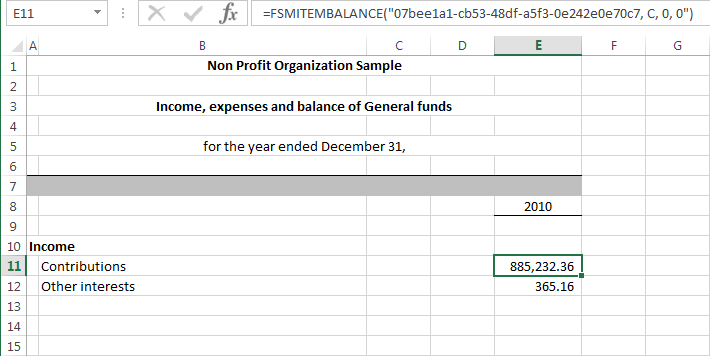
Details toggles the display of an Item's accounts.
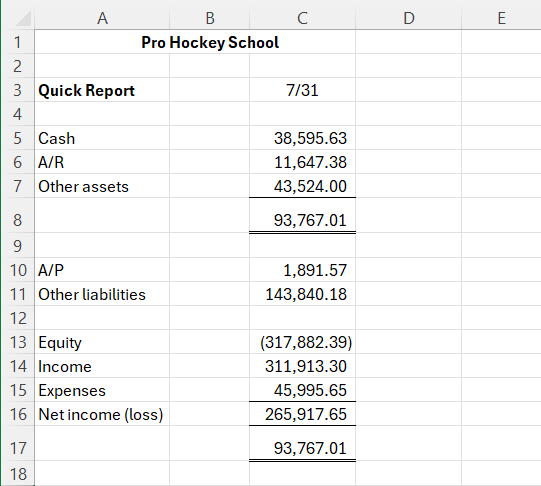
To illustrate, here is a sheet with a financial report.
It is shown first with Details turned Off, then with Details turned On for the first Item:
Details turned Off
Details turned On for the first Item
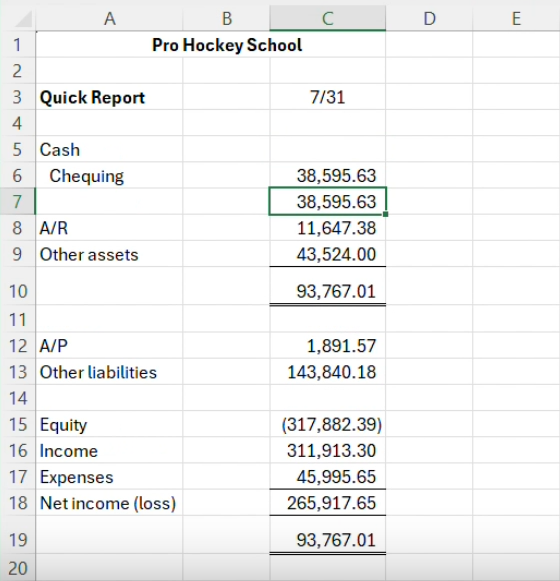
Figure 1: When Details are turned on, the accounts grouped in the Item are shown. Notice how rows are inserted to show the accounts for the "Cash" Item.
The detail rows are inserted prior to the Item balance, separated by cell borders: a top border is added in the Item balance cell with Details ON, and removed with Details OFF.
Double-clicking on an account's balance provides the detail of the account's balance
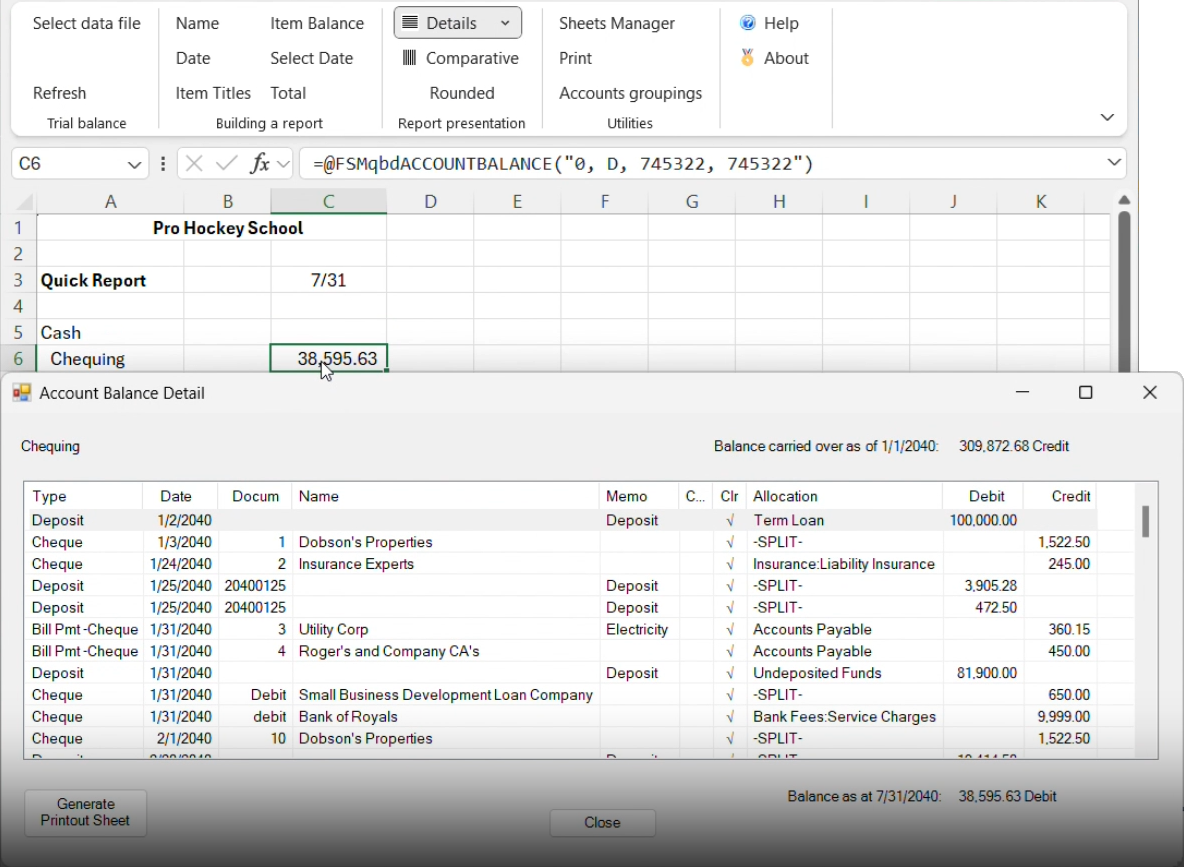
and double-clicking on a transaction from the Account Balance Detail
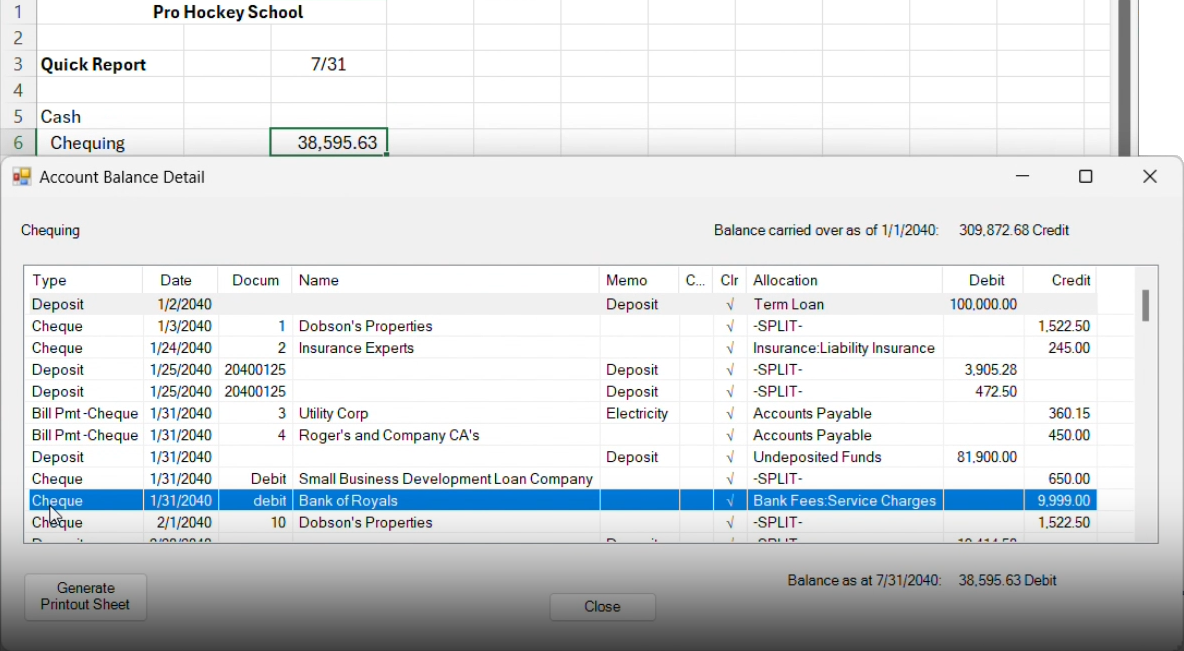
provides the detail of the transaction
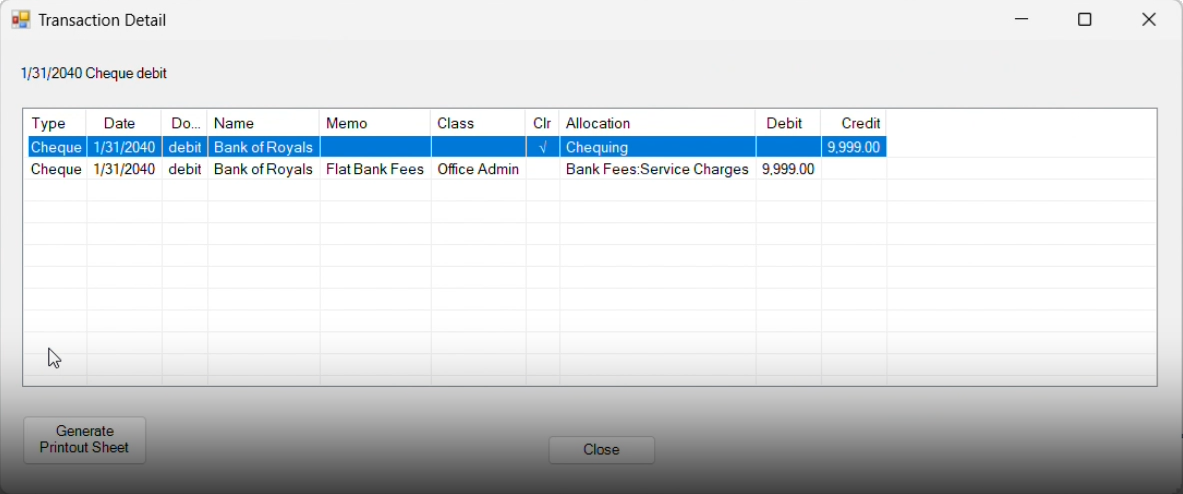
Toggling an Item's Details
Select the item(s) in the worksheet that you wish to toggle:
•Click a single item
•Hold down the Ctrl key while clicking to select multiple items
•Hold down the Shift key while clicking items to select all the items in between.
•Click an item and drag the mouse to select the items within the rectangle you drag.
•Select all the items in the worksheet by clicking the square in the upper left corner of the worksheet:

Details are toggled based on the state of the first selected item. If the first selected item does not have its details showing, then details are shown for all the selected items. Conversely, if the first selected item does have its details showing, then details are removed for all the selected items.
Note: The Details button is pushed (or not pushed) when the active cell contains (or does not contain) details, respectively .
Show Account Numbers In Details
Whether or not Account Numbers are shown is determined by the Details ribbon button. Click on the arrow next to the Details to select from the drop down menu:
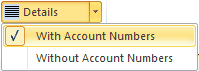
The next time you press the Details button, your choice will be used.
Formulas
The formulas in the cells containing details are e.g.
=FSMACCOUNTTITLE("8")
=FSMACCOUNTBALANCE("8, D, 0, 0")
Transforming Item's Accounts Into Items
From the toggled Details of an Item (shown without account numbers in the following sample)
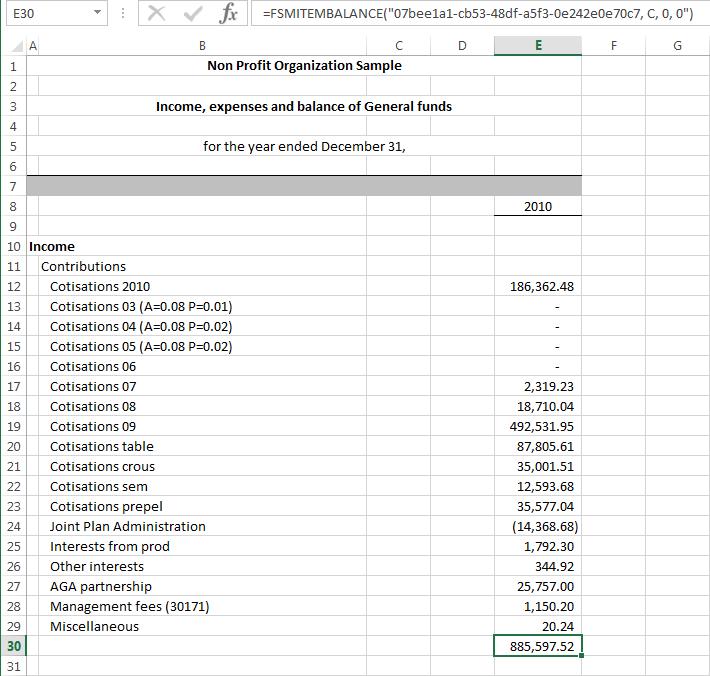
you can select accounts
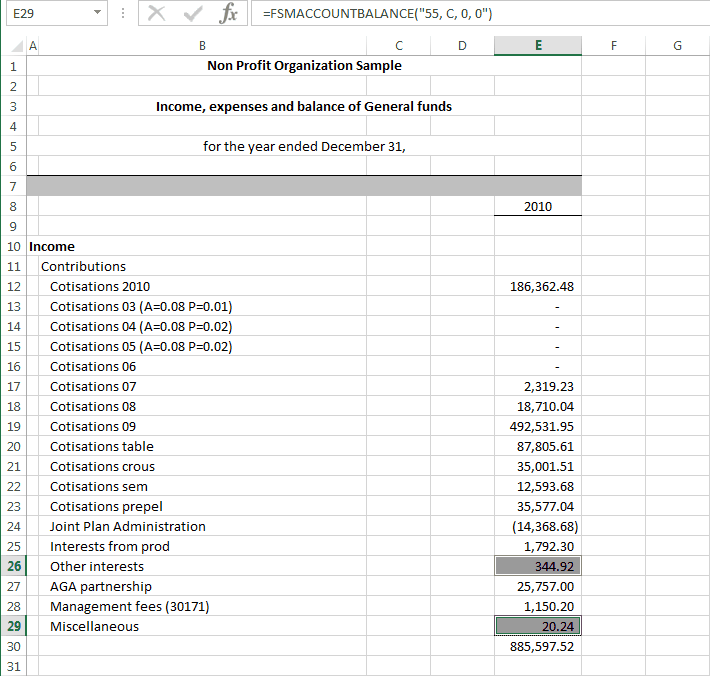
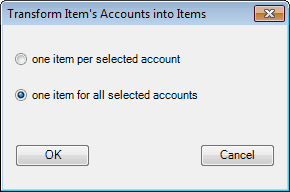
then click the Item Balance button from the FSM ribbon, and choose to transform the selected accounts into one item per selected account
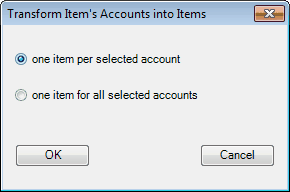
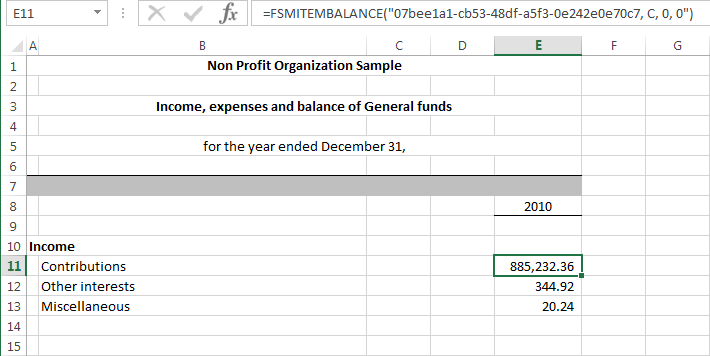
or choose to transform the selected accounts into one item for all selected accounts