Creating an ExcelFSM QuickBooks Online Company File
After installing ExcelFSM, you must create an “ExcelFSM QuickBooks Online” company file that contains the access token. This file allows ExcelFSM to read trial balance data from your QuickBooks Online (QBO) company.
To create this file, you will use the ExcelFSM QuickBooks Online Utility app. Before the file can be created, the Utility app must be connected to your QBO company.
Step 1 — Connect the Utility App to QuickBooks Online
Open a browser (Microsoft Edge, Chrome, or Firefox) and click https://excel-fsm.com/FSMQBO/
If you are not already signed in to QBO, you will be prompted to sign in. see screen shot
After signing in, you will be asked to select the QBO company you want to connect. see screen shot
Once you select the company, confirm the connection. see screen shot
After the connection is completed, you will receive a confirmation email from Intuit. see screen shot
Step 2 — Create the ExcelFSM QuickBooks Online Company File
In your QuickBooks Online (QBO) company, click the My Integrations icon, then click Manage integrations. see screen shot
Under ExcelFSM, click Launch. see screen shot
(With QuickBooks Online Accountant, it can be launched from Client apps - by the Admin) see screen shot
Alternative method: You can also open the Utility app directly by clicking https://excel-fsm.com/FSMQBO/
Click the Create File button.
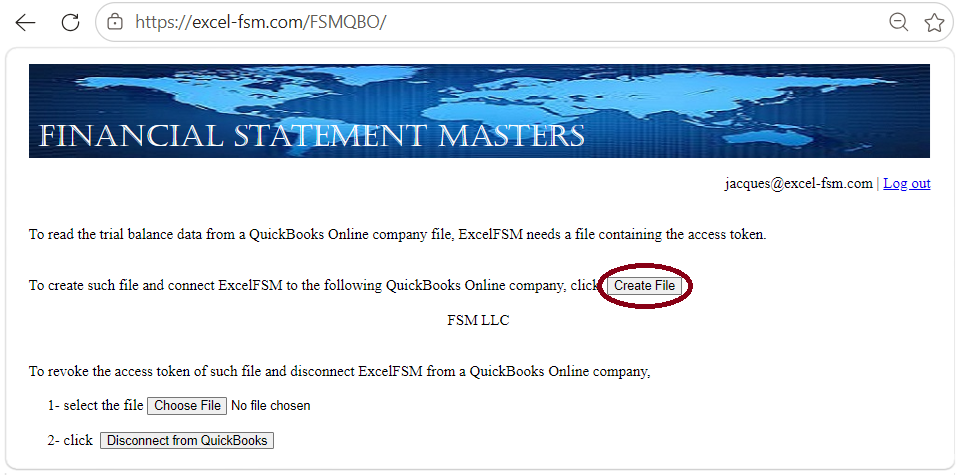
Save the file. Important — Do Not Use OneDrive
Do NOT save the “ExcelFSM QuickBooks Online” company file in a OneDrive folder. Saving it locally prevents sync‑related issues.
After creating the file, select it within ExcelFSM. This allows ExcelFSM to access and read the trial balance data from your QuickBooks Online company.
ExcelFSM
ExcelFSM real time
If the access token is ever revoked, reopen the ExcelFSM QuickBooks Online Utility and create a new “ExcelFSM QuickBooks Online” company file.
If ExcelFSM cannot access your QBO company data using the “ExcelFSM QuickBooks Online” company file containing the access token, disconnect the ExcelFSM Utility App from QuickBooks Online Company, reconnect, and then create a new “ExcelFSM QuickBooks Online” company file.
see how