View, insert, re-order, copy, update, and create PDF or XPS files for selected sheets in the workbook.
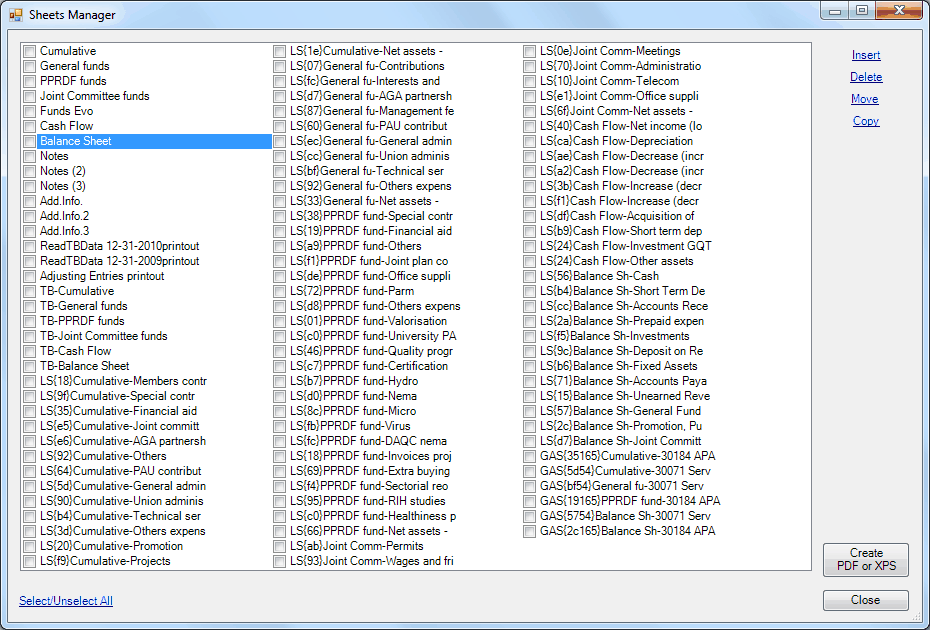
Managing sheets from the worksheet tabs at the bottom of Excel can be tedious and time consuming.
The ExcelFSM Sheets Manager allows to see all the sheets at one glance. The Sheets Manager dialog is movable and resizable. The bigger you make the window, the more sheets are visible.
Simply click on a sheet to make this sheet active.
•Click Insert to insert a sheet before this active sheet
•Click Move to move the active sheet, by selecting the sheet to move it before and then click move again.
•Click Copy to make a copy of the active sheet
To delete sheet(s), check the desired sheet(s), then click Delete.
To create a PDF or XPS file, check the desired sheet(s), then click the Create PDF or XPS button.
To rename the active sheet, use the tag at the bottom of Excel and right click - Rename.